Your Growing Companion helps you plan, record and manage your garden in one place. It brings together your growing spaces, planting records, harvests, seasonal sowing information, local weather and practical support.
This guide will take you through the main features step by step, whether you are using the app on a phone, tablet or computer.
Getting Started: Your Dashboard
When you sign in, the Dashboard gives you a quick overview of your garden. From here, you can see useful seasonal information, recent garden activity and shortcuts to the features you use most often.
The navigation menu at the bottom of the screen provides direct access to the Garden Planner, Growing Spaces, Garden Log and the More menu. On a computer, these options appear in the main navigation.
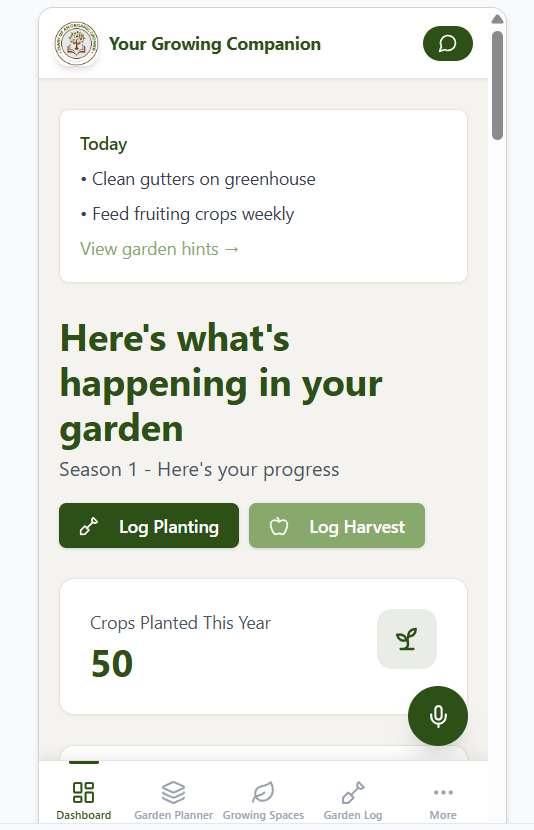
Your Growing Companion dashboard showing garden progress, planting and harvest shortcuts, and the main navigation menu.
Plan Your Garden
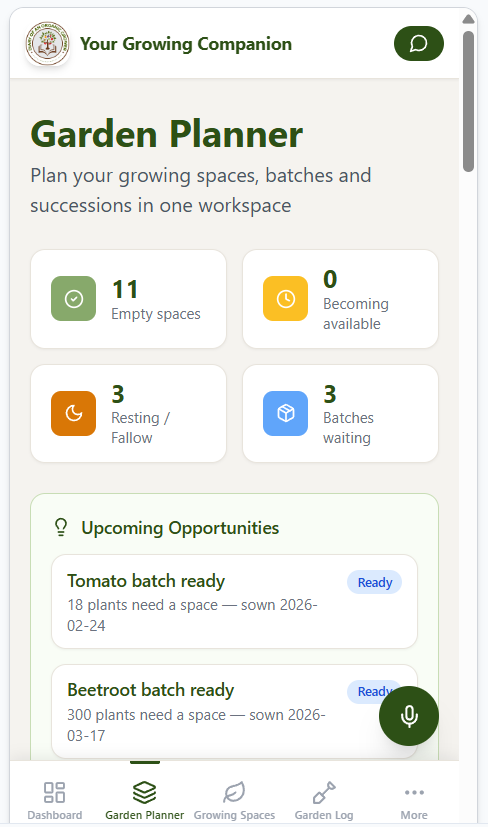
The Garden Planner brings together the information you need to understand what is happening across your garden. It provides a clear summary of your growing spaces, crops, plantings and harvests for the current season.
Use it to review your progress, see where crops are growing and identify spaces that may be ready for their next planting. As you add records elsewhere in the app, the planner updates automatically.
Set Up Your Growing Spaces
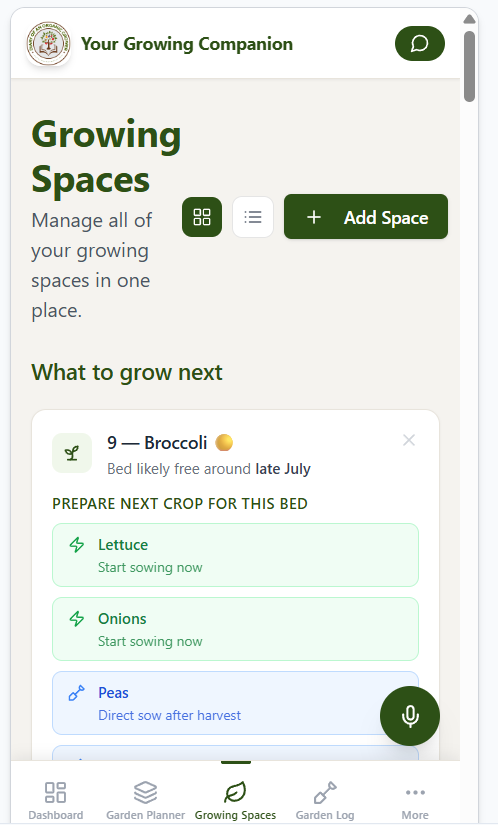
Growing Spaces is where you create and manage the different areas of your garden, including individual beds, a greenhouse or an orchard. Each space keeps the relevant planting information together, making it easier to see what is growing where.
Select a growing space to view its current crops and history. When creating or editing a bed, you can record useful details and mark permanent crops that will remain in place from one season to the next. Keeping these spaces accurate helps the Garden Planner provide a reliable overview of your garden.
Record What You Plant
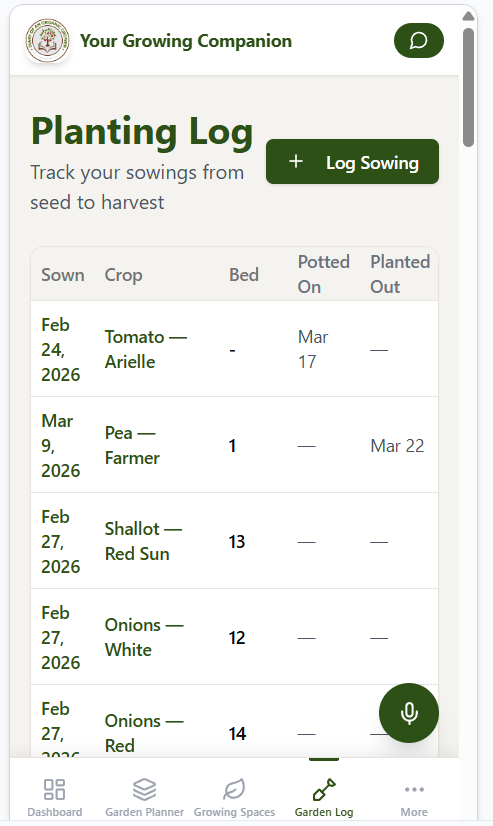
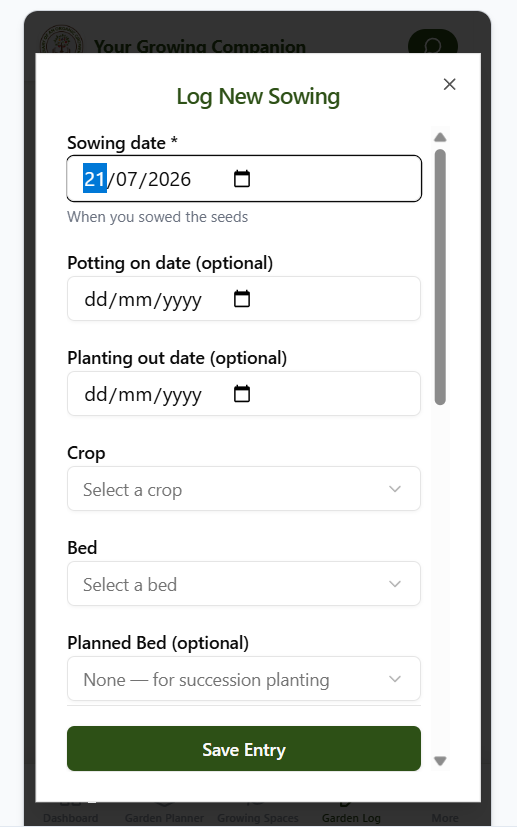
The Planting Log creates a lasting record of what you sow and plant. Open Garden Log, select Planting Log, then use Log Planting to add a new entry.
Choose the crop, planting date and growing space, then add any other useful information available on the form. Recording each planting means you can later check when and where a crop was started instead of relying on memory.
If seedlings are moved or planted into more than one bed, update their record so the app continues to reflect their location accurately. This information also contributes to the summaries shown in your Garden Planner.
Record Your Harvests
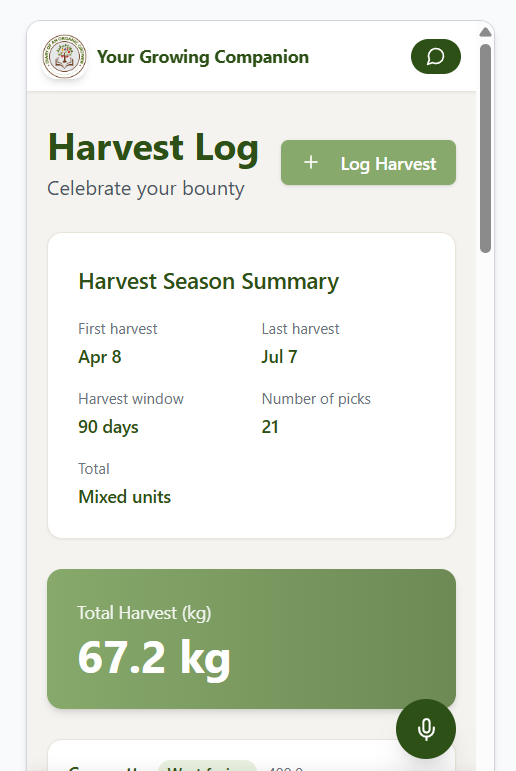
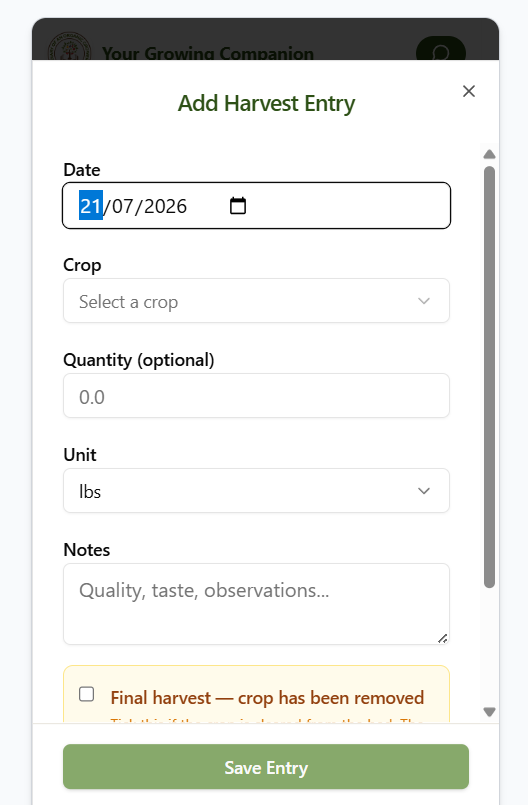
Open Garden Log, select Harvest Log, then choose Log Harvest whenever you pick produce from the garden.
Select the crop, enter the harvest date and record the amount harvested. You can also add notes that may be useful later, such as the crop’s condition, flavour or performance.
Regular harvest records reveal how productive individual crops and growing spaces have been. Over time, this helps you compare seasons, recognise successful varieties and make better planting decisions.
Use the Seasonal Planting Calendar
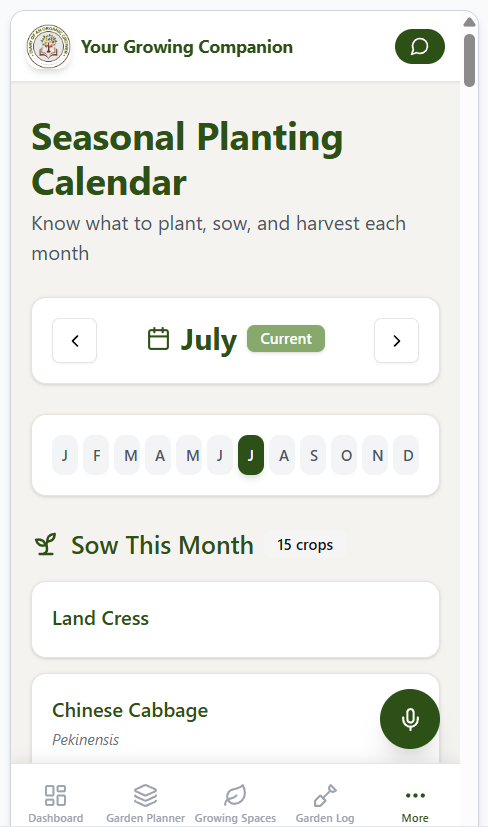
The Seasonal Planting Calendar provides sowing and planting guidance suited to your location and the time of year. It helps you see which crops can be started now and what opportunities are approaching.
Use the calendar as a practical guide rather than a fixed set of deadlines. Local weather, your soil, available protection and the conditions in your own garden can all affect the best time to sow.
Open a crop to view its guidance, then add it to your garden records when you decide to grow it. This connects seasonal planning with the planting information you keep inside the app.
Check Your Local Weather
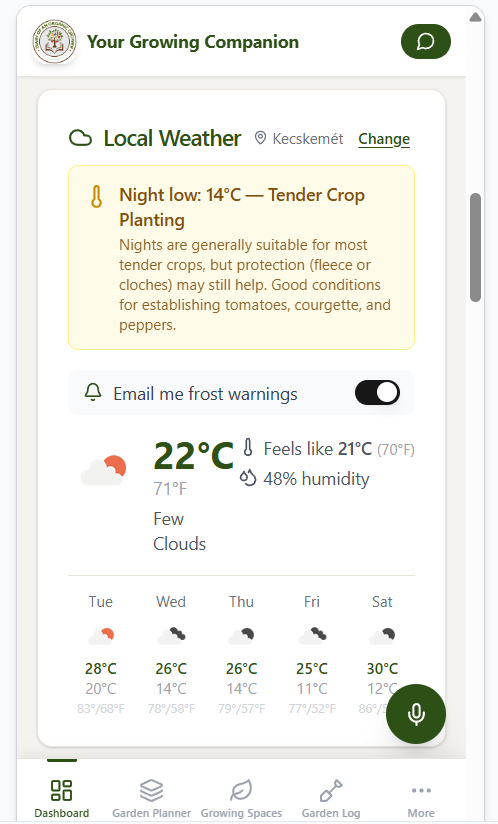
Local Weather shows the conditions and forecast for your area, helping you plan everyday garden jobs such as watering, sowing, planting and protecting crops.
Your Growing Companion can also warn you about conditions that may affect plants. Frost alerts highlight temperatures below 2.2°C, while cold-weather warnings help you protect tender crops when nighttime temperatures are expected to fall below 10°C.
Forecasts can change, so use these alerts alongside your own observation of local conditions and the more sheltered or exposed areas of your garden.
Identify a Plant Problem
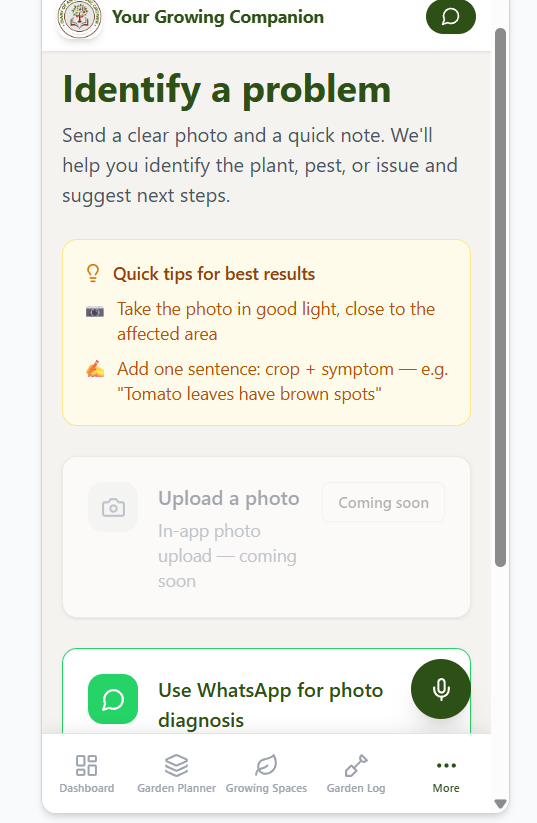
Use Identify a Problem when a plant appears unhealthy or damaged and you need help understanding the possible cause.
Describe what you can see as clearly as possible. Include the plant affected, which part of it is damaged, how quickly the problem appeared and any recent weather or growing conditions that may be relevant. Add clear photographs when the option is available.
The feature will use the information you provide to suggest possible explanations and practical next steps. Treat the result as guidance: compare it carefully with the plant and seek specialist advice if the identification remains uncertain.
Ask Gerald for Help
Gerald is the app’s built-in gardening assistant. Use the microphone button to ask a question in your own words, or type your question when that option is available.
For the most useful answer, make the question specific. Mention the crop, the problem or task, your growing conditions and what you have already tried. Gerald can help explain features in the app as well as offer practical growing guidance.
Voice help listens to one question at a time. Ask a short, complete question, allow Gerald to respond, then ask a follow-up if you need more detail. Advice should always be considered alongside the actual conditions in your garden.
Save Projects and Ideas
Use Projects to organise larger garden jobs that may involve several steps, such as creating a new bed, improving a growing area or planning work for a future season. Record the details while they are fresh, then return to the project as the work progresses.
My Ideas provides a place to save crops, improvements and experiments you may want to try later. The Try Something New suggestions can also help you discover possibilities for your garden.
Keeping future plans inside the app prevents useful ideas from becoming scattered across notebooks, messages and pieces of paper. Only turn an idea into an active project when you are ready to act on it.
Find More Features
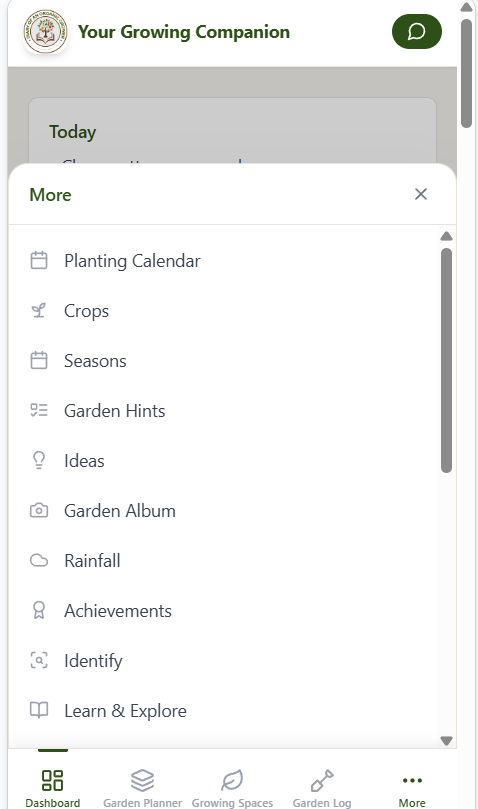
Select More in the main navigation to open the app’s additional tools and settings. This menu provides access to features that are useful but do not need to remain in the main navigation at all times.
Use it to find options such as the Seasonal Planting Calendar, Local Weather, Projects, My Ideas, Identify a Problem and support. The precise options available may depend on your account and subscription level.
Get Support
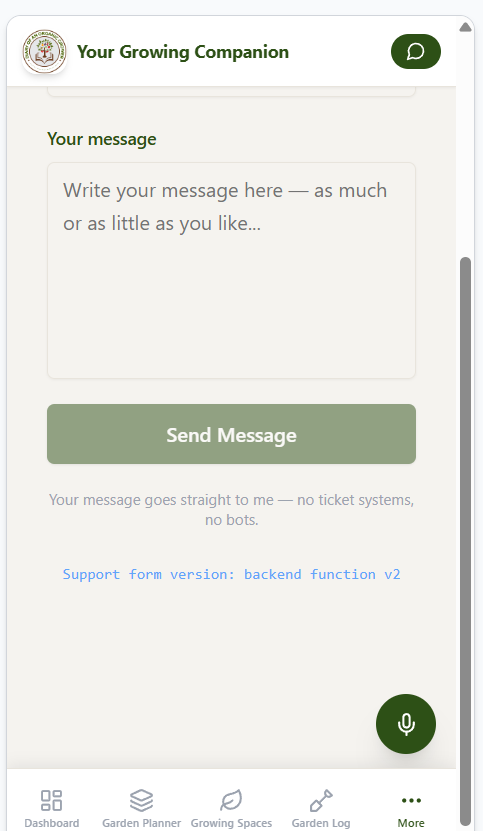
If you need help with the app itself, open the support form from the More menu. Enter a clear description of what you are trying to do, what happened and any message shown on the screen.
Include the page or feature you were using and whether you were on a phone, tablet or computer. Providing these details makes it easier to understand the issue and give you the right assistance.
Use support for account, subscription or technical questions. For general gardening questions, ask Gerald or use the relevant growing feature inside the app.
Build a Useful Garden History
Your Growing Companion becomes more useful as you continue recording what happens. Add plantings when they are made, update crop locations when plants are moved and record harvests regularly.
You do not need to document every minor detail. Focus on information that will help you make future decisions: what you grew, where and when you planted it, how much you harvested and anything unusual that affected the result.
Over time, these records create a personal history of your garden—helping you learn from previous seasons, repeat what worked and adapt what did not.
Start with the Essentials
Begin by setting up your main growing spaces and recording what is already planted. From then on, make the Planting Log and Harvest Log part of your normal garden routine.
Explore the other features gradually rather than trying to complete everything at once. A few accurate, regularly updated records will be more valuable than a large amount of information that quickly becomes out of date.
Your Growing Companion is designed to support your gardening—not add another chore. Use the features that genuinely help you plan, observe and enjoy what happens in your garden.
Your Growing Companion: App Screen Tour
The following images show where to find the app’s main features on a mobile device. The layout may appear wider on a tablet or computer, but the tools and navigation work in the same way.